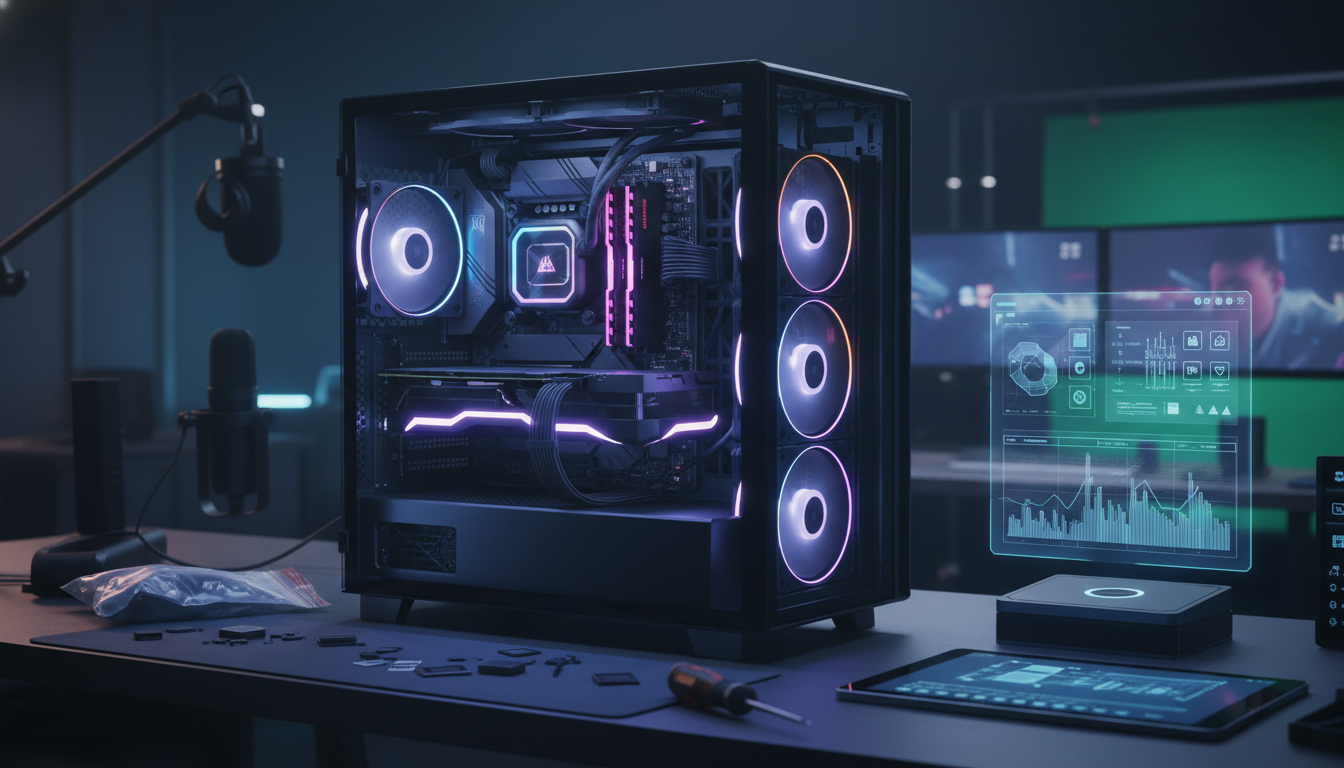
The Ultimate Guide: How to Build a Custom PC for Gaming and Video Editing in 2024
I remember the first time I pressed the power button on a PC I built myself. My heart was racing. I had spent hours researching, a few more hours sweating over tiny screws, and a small fortune on parts.
When the fans started spinning and the BIOS screen popped up, I felt like a wizard. It wasn’t just a box under my desk. It was my creation, perfectly tuned for my two biggest passions: competitive gaming and high-resolution video editing.
In 2024, the hardware scene has changed quite a bit. We have AI-powered GPUs and lightning-fast DDR5 memory. If you want to know how to build a custom PC for gaming and video editing in 2024, you are in the right place. Let’s get your hands dirty and build something amazing.
What’s Inside This Guide:
- Why Build a Hybrid Gaming and Editing Rig?
- Setting Your Budget: What Can You Afford?
- The Brain: Choosing the Right CPU
- The Muscle: Graphics Cards for 4K and High FPS
- Memory: Why 32GB is the New Minimum
- Storage: Speed for Windows, Space for Footage
- The Backbone: Motherboards and Power Supplies
- Step-by-Step: Putting It All Together
- Software Setup and Optimization
- Frequently Asked Questions
Why Build a Hybrid Gaming and Editing Rig?
Most people think a gaming PC and a workstation are two different things. That used to be true. Gaming needed fast single-core speeds, while editing needed many cores.
Today, those worlds have collided. Modern games are incredibly heavy on CPUs. Meanwhile, video editing software like Premiere Pro and DaVinci Resolve now uses your graphics card to do the heavy lifting.
Building a “hybrid” machine means you don’t have to compromise. You can play Cyberpunk 2077 at 144Hz in the morning and export a 4K YouTube video in the afternoon without your computer breaking a sweat.
Setting Your Budget: What Can You Afford?
Before you buy a single screw, you need a number. PC parts prices can swing wildly. In 2024, here is a rough breakdown of what you should expect to spend.
The Mid-Range Hero ($1,200 – $1,600): This is the sweet spot. You get 1440p gaming and smooth 4K editing. You’ll likely use an i7 or Ryzen 7 and a mid-tier RTX card.
The High-End Beast ($2,500+): This is for professionals. We are talking about 4K gaming at max settings and editing 8K footage or heavy 3D motion graphics. This involves the RTX 4090 and top-tier i9 or Ryzen 9 chips.
Don’t forget the “hidden” costs. You need a monitor with good color accuracy for editing, a mechanical keyboard, and a mouse that doesn’t hurt your wrist after ten hours of work.
Alt-Text: Essential components for building a custom gaming and video editing PC in 2024.
The Brain: Choosing the Right CPU
When you are learning how to build a custom PC for gaming and video editing in 2024, the CPU is your most important choice. It handles the logic of your games and the rendering of your video files.
For Intel fans, the 14th Gen i7-14700K is a monster. It has extra “E-cores” that help with background tasks while you edit. It’s snappy, reliable, and handles multi-tasking like a pro.
If you prefer AMD, the Ryzen 9 7950X is the king of productivity. However, if you want the absolute best gaming performance, the Ryzen 7 7800X3D is legendary. Just keep in mind that the “X3D” chips are slightly slower at video rendering than their non-3D cousins.
Pro Tip: Don’t cheap out on the cooler. These modern chips run hot. A 360mm AIO (Liquid Cooler) or a massive air cooler like the Noctua NH-D15 is a must.
The Muscle: Graphics Cards for 4K and High FPS
The GPU is the heart of your gaming experience. But for video editors, it’s also the engine that renders effects and handles color grading. In 2024, NVIDIA still holds the crown for editors because of “CUDA cores.”
- RTX 4070 Super: The best value for 1440p gaming and solid 4K editing.
- RTX 4080 Super: Great for heavy 4K timelines and high-refresh-rate gaming.
- RTX 4090: The undisputed king. If you have the money, this makes video exports feel instant.
If you only care about gaming, AMD’s RX 7900 XTX is a fantastic value. But be careful—some editing suites still run better on NVIDIA drivers. Always check if your favorite software prefers “Team Green” or “Team Red.”
Memory: Why 32GB is the New Minimum
Back in the day, 8GB was plenty. Then 16GB became the standard. In 2024, if you are editing video, 16GB will make you miserable. Your computer will stutter the moment you open Chrome and Premiere Pro at the same time.
Go for 32GB of DDR5 RAM. It’s faster and handles the huge data loads of modern games. If you plan on doing heavy 4K or 6K editing with lots of effects, consider 64GB.
Make sure you buy a “kit” (two sticks of 16GB each). Running your RAM in “Dual Channel” mode gives you a massive performance boost for free. It’s one of the easiest ways to speed up your machine.
Storage: Speed for Windows, Space for Footage
Gone are the days of clicking “Save” and waiting five minutes. For a hybrid build, you need a two-tier storage system. Speed for the system, and space for the files.
The Boot Drive: Use a 1TB or 2TB NVMe M.2 Gen4 (or Gen5) SSD. This is where your Windows and your programs live. Everything will feel instant.
The Project Drive: Video files are huge. A 4TB SATA SSD or a high-capacity HDD is great for storing raw footage and old games. Never edit video directly off a slow spinning hard drive if you can avoid it—it will make your timeline laggy.
Alt-Text: Installing a fast M.2 SSD for quick video editing performance.
The Backbone: Motherboards and Power Supplies
The motherboard connects everything. For Intel, look for Z790 boards. For AMD, look for X670 or B650. You want a board with plenty of USB ports (you’ll need them for peripherals and external drives) and at least two M.2 slots.
Then there is the Power Supply (PSU). Do not buy a cheap PSU. If it fails, it can take your whole computer with it. For a gaming/editing rig in 2024, look for an 850W or 1000W unit with an “80 Plus Gold” rating.
Make sure it is “ATX 3.0 Compatible.” This means it has the new power cable that modern graphics cards need, so you won’t have to use ugly adapters.
Step-by-Step: Putting It All Together
Now for the fun part of how to build a custom PC for gaming and video editing in 2024. Clear off a large table, get a magnetic screwdriver, and take a deep breath.
- The Motherboard Prep: Install the CPU, RAM, and M.2 SSD onto the motherboard while it’s still outside the case. It’s much easier this way.
- Case Setup: Screw in the “standoffs” if your case doesn’t have them pre-installed. These keep the motherboard from touching the metal case and shorting out.
- The I/O Shield: Don’t forget to snap this into the back of the case. We’ve all forgotten it once and had to take the whole PC apart again!
- Mounting: Carefully place the motherboard inside and screw it down.
- Power: Slide the PSU into the bottom. Run the big 24-pin cable to the motherboard and the 8-pin cable to the CPU.
- GPU: This is the final piece. Click it into the top PCIe slot and plug in the power cables.
Cable management is your friend. Use zip ties to keep the wires neat. It’s not just for looks; it helps air flow through the case to keep things cool.
Software Setup and Optimization
Once the PC turns on, you aren’t done yet. You need to tell the hardware how to behave. First, install Windows 11. It handles the “Performance Cores” of modern CPUs much better than Windows 10.
Update your BIOS: This is crucial for stability, especially on newer AMD platforms. Then, go to the NVIDIA or AMD website and download the latest drivers.
Enable XMP/EXPO: By default, your RAM will run at slow speeds. You have to go into the BIOS and turn on XMP (Intel) or EXPO (AMD) to get the speed you actually paid for. This is a common mistake that costs people 10-15% of their performance.
Conclusion
Learning how to build a custom PC for gaming and video editing in 2024 is one of the most rewarding skills you can have. You end up with a machine that is faster, quieter, and cheaper than anything you can buy at a big-box store.
Take your time, watch some videos if you get stuck, and don’t be afraid to ask for help in online communities. Once you render your first video in record time and jump into a game with ultra-smooth graphics, you’ll know it was all worth it.
Frequently Asked Questions
Q: Is Intel or AMD better for video editing in 2024?
A: It’s a tie. Intel’s QuickSync technology is amazing for scrubbing through timelines in Premiere Pro. However, AMD’s high core counts on the Ryzen 9 series are incredible for raw rendering power.
Q: Do I really need 64GB of RAM?
A: Only if you are doing professional 4K/8K work or heavy 3D animation. For 1440p gaming and standard YouTube editing, 32GB is plenty.
Q: Can I use a TV instead of a monitor?
A: You can, but be careful. Most TVs have “input lag” which is bad for gaming, and poor color accuracy which is bad for editing. Look for an OLED monitor or an IPS panel for the best experience.